
Initial 3D Modeling
Lesson 2 of 8 Starship Design
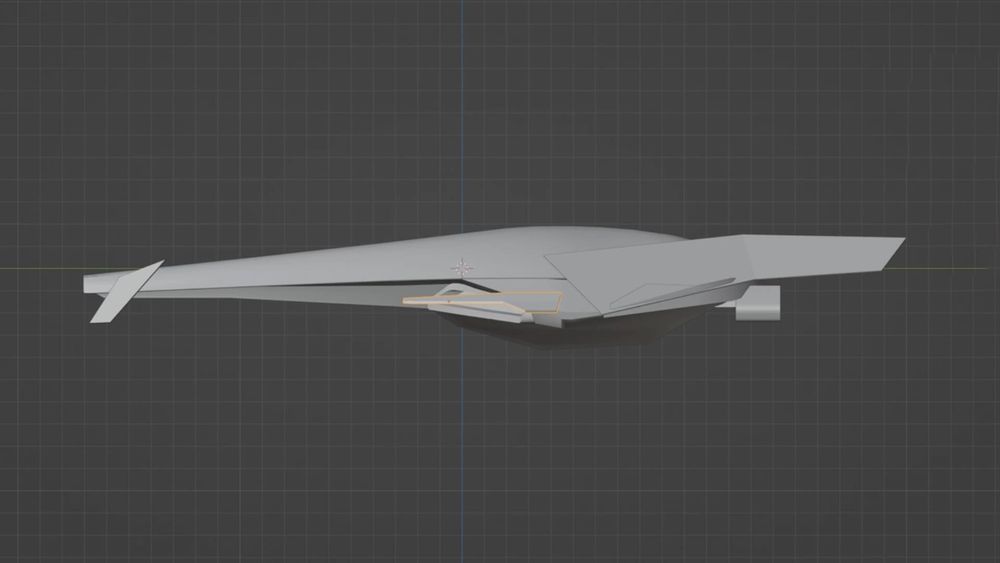
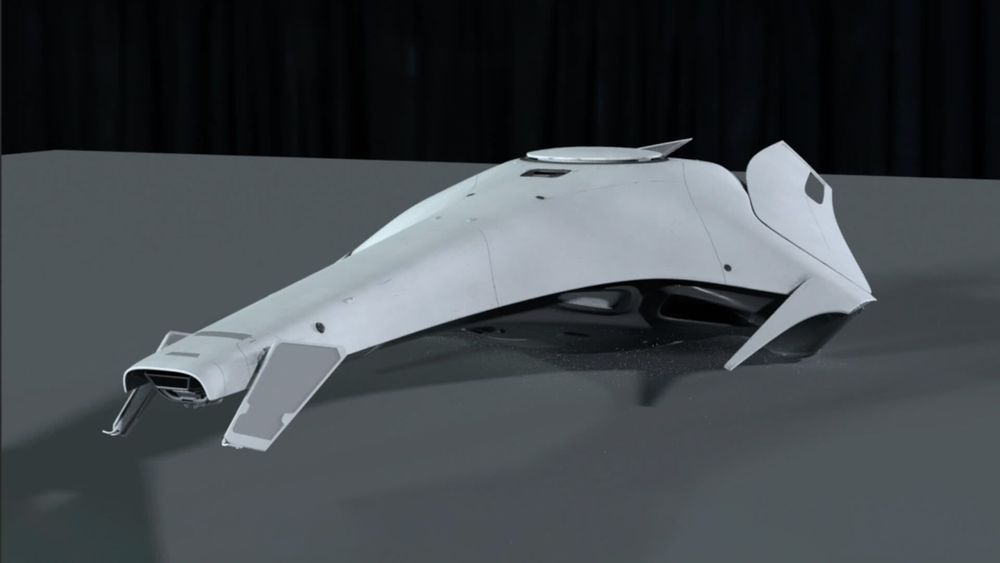
Now you will take one of your sketches and begin turning it into a full 3D model. In this lesson you will block things out, then revise the details with quick paintovers.
3D Blockout Homework
Create a rough 3D blockout of your spaceship, keeping the general shape in mind from all angles. Don’t worry about details or ‘clean’ modeling techniques, because you will revise the model later with better geometry. For now, focus on creativity over precision!
Modeling Cleanup Homework
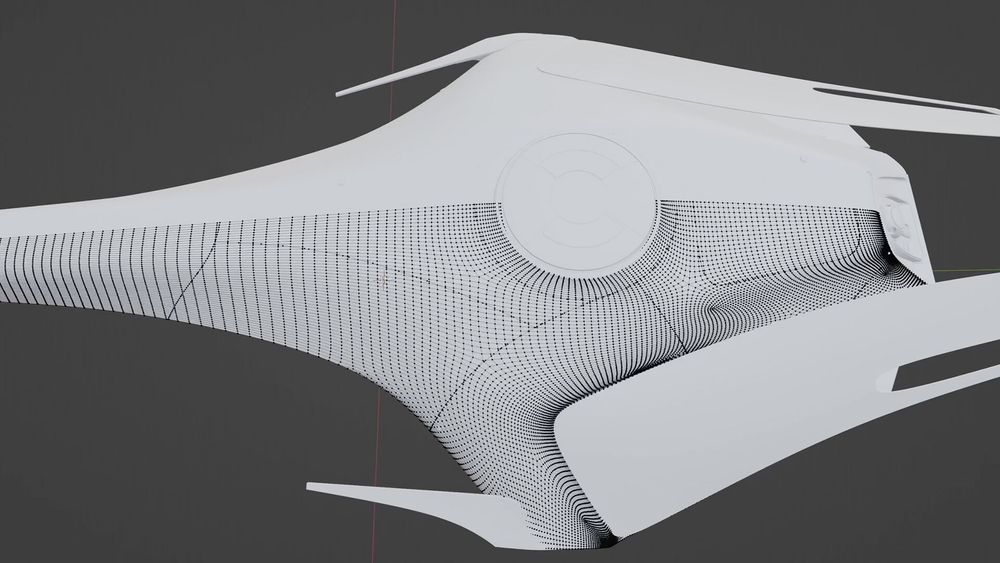
Now it’s time to recreate your spaceship model, using your rough blockout as a guide. There’s no need to get into details here, but be mindful of your shapes and topology.
Design Check-In Homework
Now that you have a cleaned up starship model, try switching back to 2D and sketching out some details to add to your design. Once you have a plan, begin adding in whichever sections of the ship you’ve mapped out. Take your time, and return to this sketching process as many times as you need.
Student Homework
- Free PreviewWatch Free Preview
Lesson 1
Thumbnail Sketching
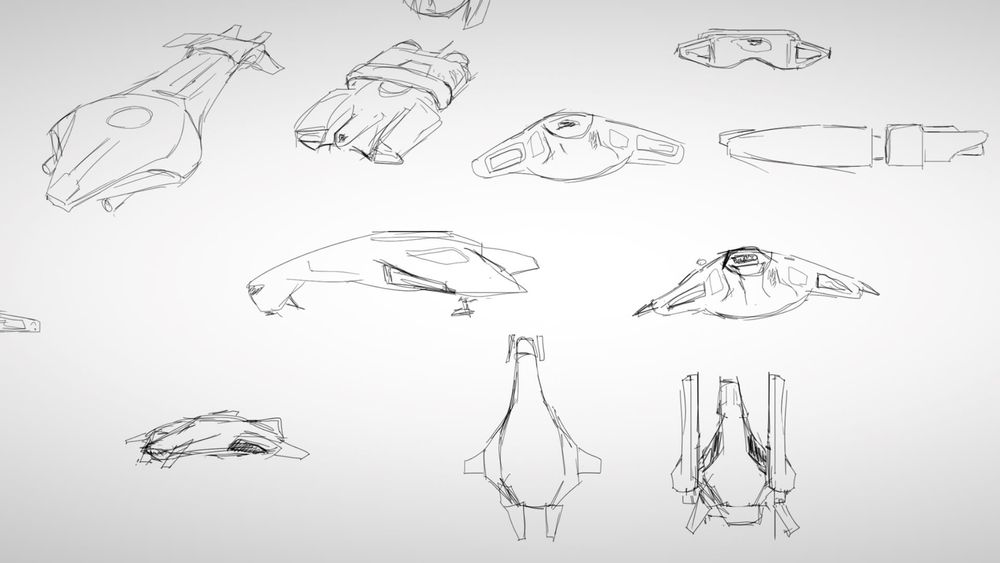
In this lesson, Gabriel will help you to come up with a class, design and inspirations for your own starship. You will then create a set of quick, loose sketches.
- 3h 33mTotal Lesson Duration
- 28 VideosVideo Lectures in this Lesson
- Project FilesDownloadable Project Files
Introduction
Gabriel's Journey
Understanding Space Vehicles
Ideation
Reference
Design Principles
Quick Sketching
Lesson 2
this lessonInitial 3D Modeling
Now you will take one of your sketches and begin turning it into a full 3D model. In this lesson you will block things out, then revise the details with quick paintovers.
- 3h 25mTotal Lesson Duration
- 28 VideosVideo Lectures in this Lesson
- Project FilesDownloadable Project Files
Introduction
Blender Crash Course
3D Blockout
Modeling Cleanup
Design Check-In
Lesson 3
3D Refinement
In this lesson you will add small details and more realistic touches. At the end of this lesson you will have a finished 3D model.
- 6h 55mTotal Lesson Duration
- 32 VideosVideo Lectures in this Lesson
- Project FilesDownloadable Project Files
Introduction
Adding Details
Smaller Details
Refining the Model
Beautifying Touches
Paneling
Kitbashing
Lesson 4
Initial Materials
Now you will create a base material for your ship, and begin adding in realistic imperfections like dirt, scratches and more.
- 7h 50mTotal Lesson Duration
- 44 VideosVideo Lectures in this Lesson
Introduction
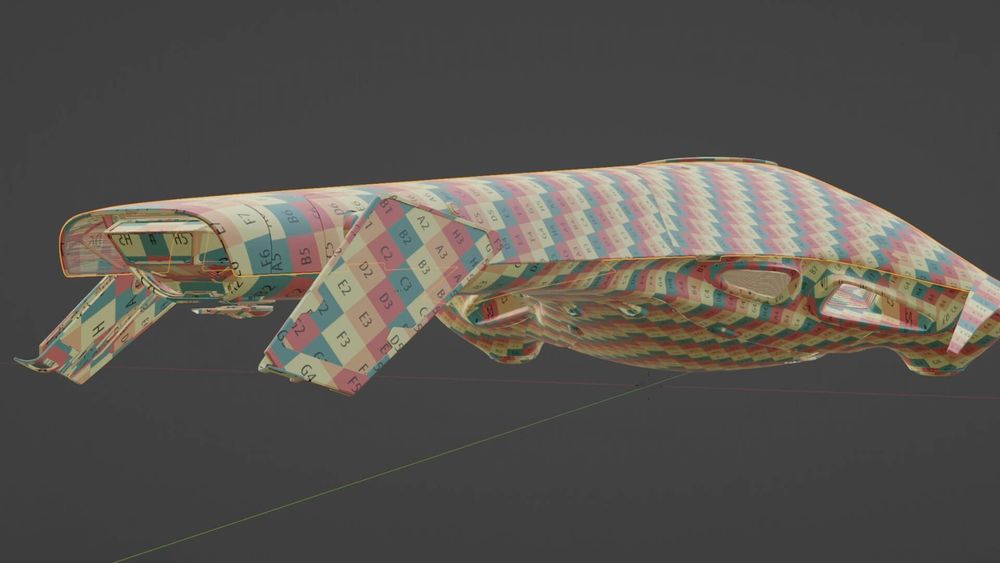
UV Mapping
Adding Materials
Octane Render Crash Course
- Octane Render Crash Course Intro01:03
- Octane Settings05:29
- UI, Navigation & Basics10:34
- Render Viewport Icons19:54
- Cameras07:33
- Environment Light11:28
- Film Settings01:28
- Kernel14:58
- Render AOVs14:28
- Imager01:48
- Post-Processing01:52
- Material Nodes14:45
- Adding Textures17:43
- Multiply, Add, Mix Nodes09:18
- Composite Texture Node06:07
- Lights09:34
- Object Layer Map Node10:19
- Octane Render Crash Course Outro02:04
Initial Setup in Octane Render
Basic Imperfections
Alterations
Conclusion
Lesson 5
Detailed Materials
Finish creating all your materials to the highest degree of realism. At the end of this lesson, you’ll be ready to take your starship to the render stage.
- 4h 47mTotal Lesson Duration
- 21 VideosVideo Lectures in this Lesson
Introduction
Paneling Material
Other Materials
Refined Materials
Lights
Conclusion
Lesson 6
Rendering
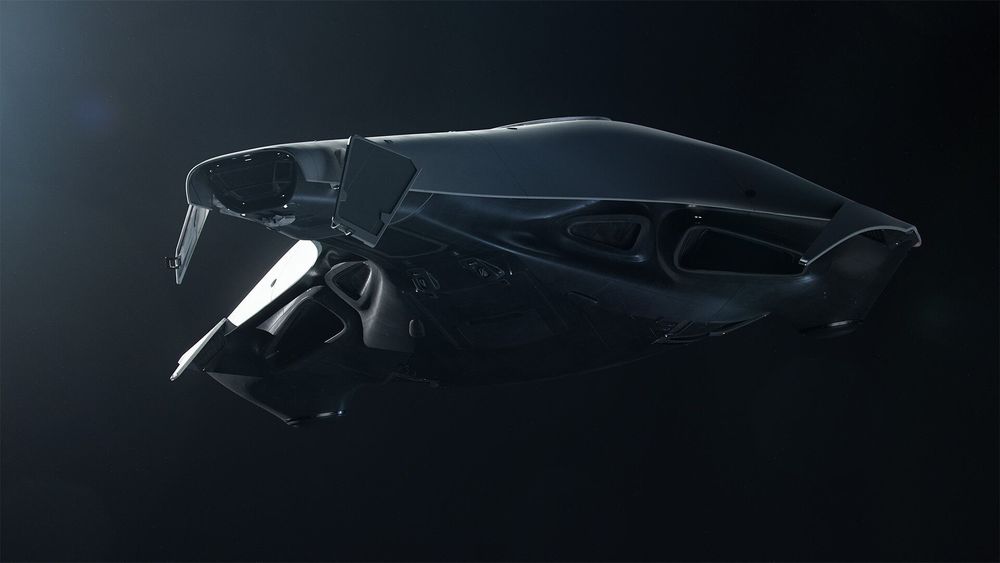
In this lesson you will light and render simple still shots of your spaceship, then create a 3D turntable to show off your work from every angle.
- 2h 20mTotal Lesson Duration
- 16 VideosVideo Lectures in this Lesson
Introduction
Camera and Lighting
Initial Renders
Quick Render Presentation
3D Turntable
Lesson 7
Final Keyframe Prep
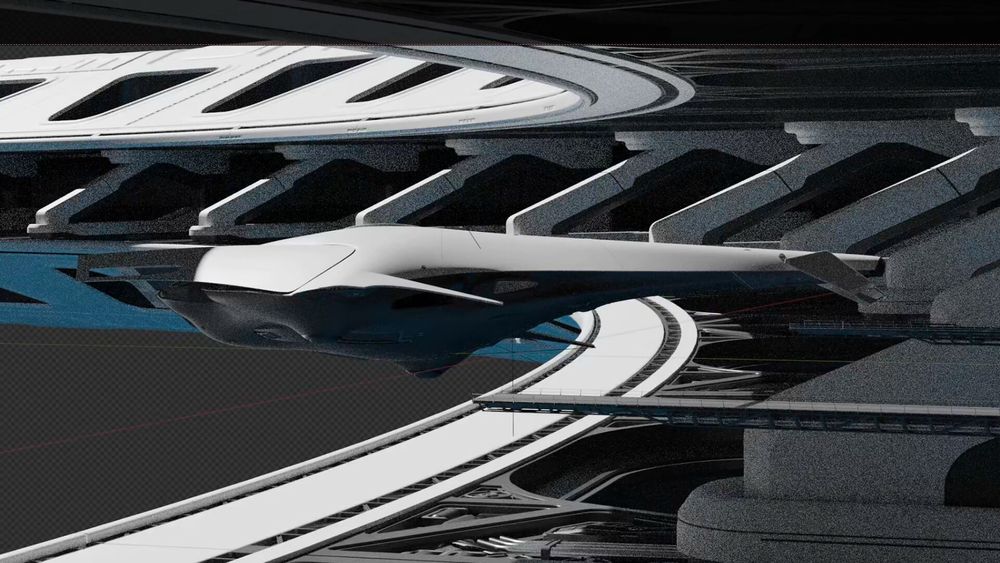
Now you will create a 3D environment to show your starship in context. In this lesson, you will sketch out new keyframes, then model the scene and add materials.
- 4h 6mTotal Lesson Duration
- 23 VideosVideo Lectures in this Lesson
Introduction
Rough Keyframe Planning
Keyframe Initial Modeling
Keyframe Initial Details
Adding Background Details
Conclusion
Lesson 8
Paintovers
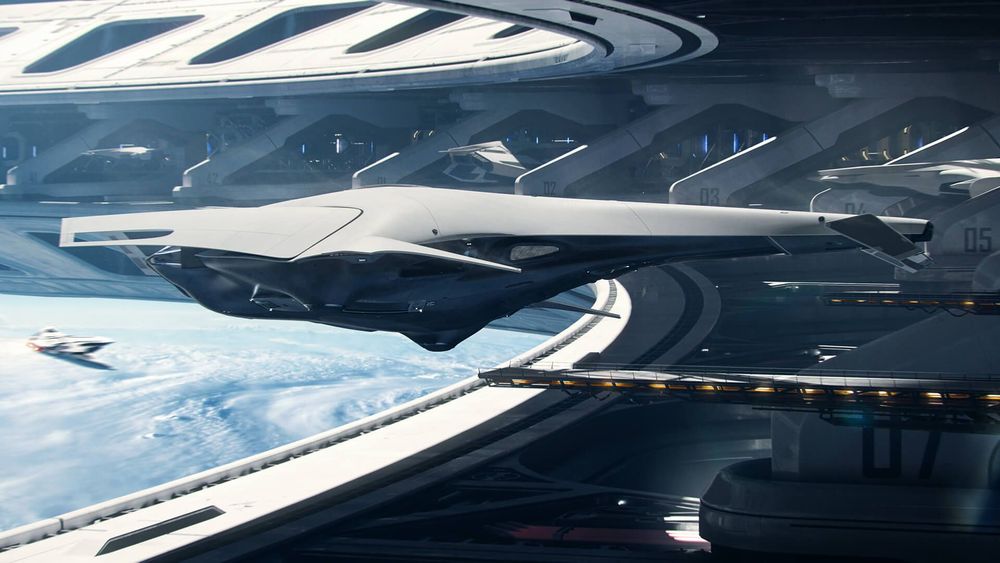
You will now take your newly rendered scenes, and create paintovers in 2D to make a set of final portfolio-ready keyframes.
- 5h 53mTotal Lesson Duration
- 33 VideosVideo Lectures in this Lesson
Introduction
Setting Up in Photoshop
Basic Keyframe Paintover
Modeling for Paintover
Paintover Details
Finalizing the First Keyframe
Second Keyframe
Second Keyframe Final Details
Third Keyframe
Conclusion
0 Comments
There are no comments
New comments from the community will be visible here.